Authentication
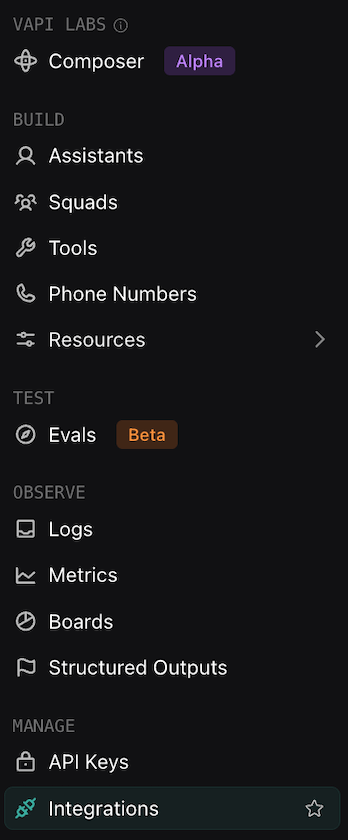
- Navigate to Integrations in the Vapi sidebar.
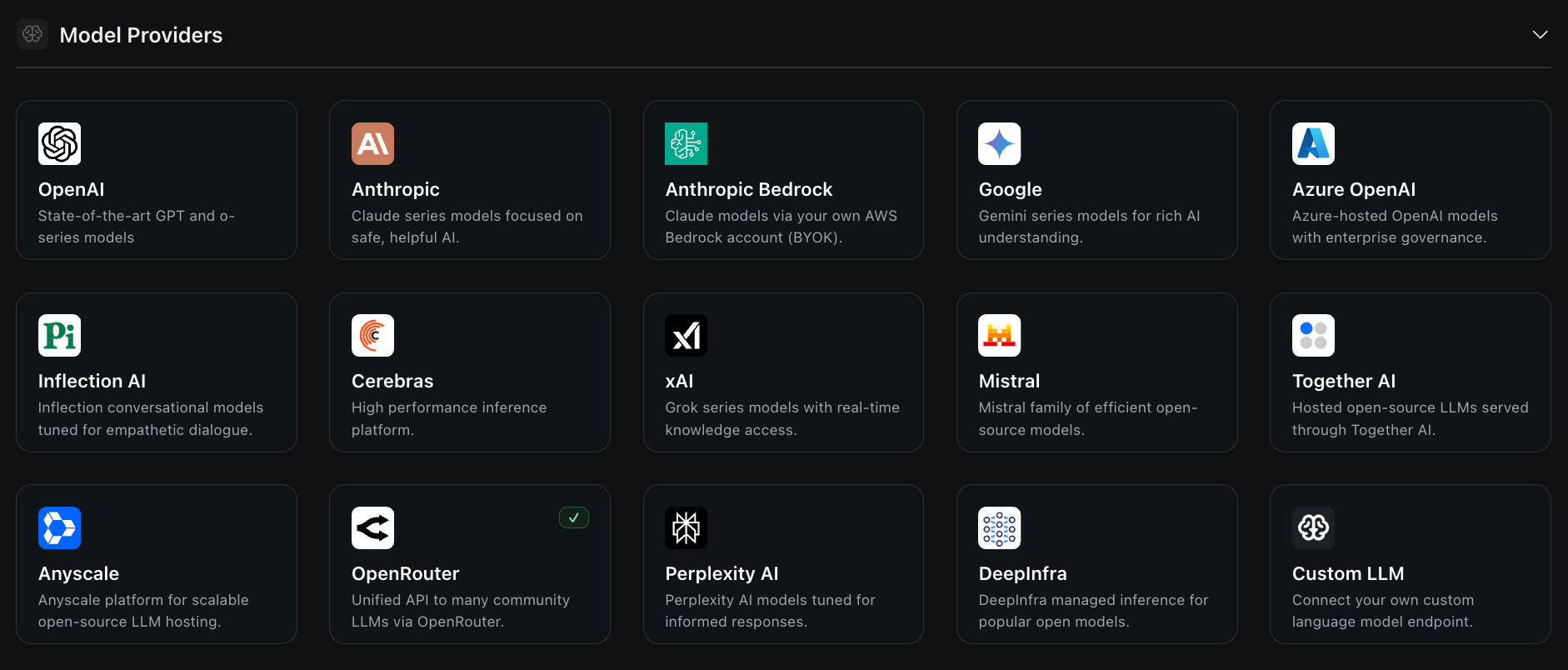
- Under Model Providers, click into Custom LLM (bottom right).
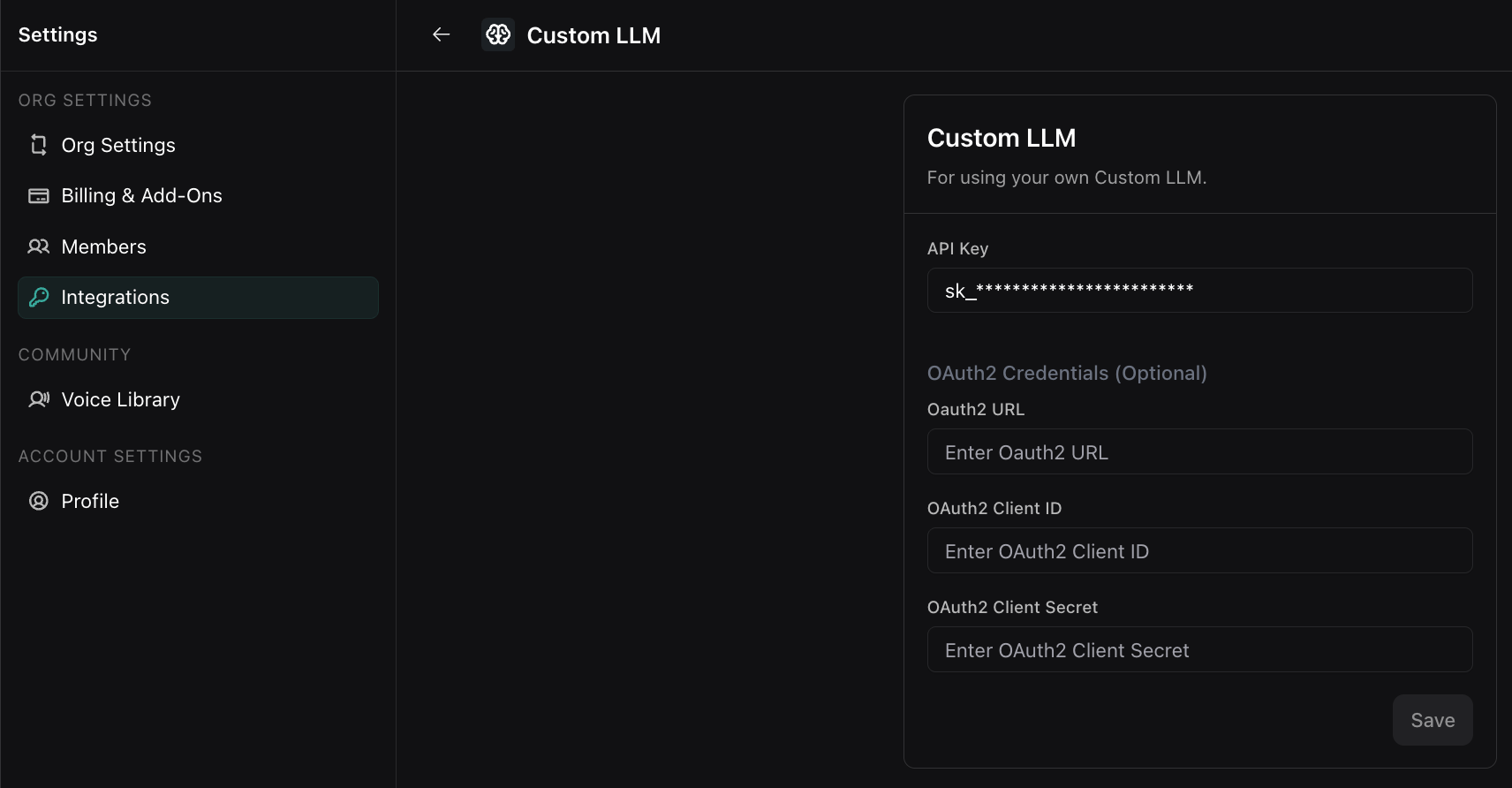
- Fill in your Inception API key and click Save.
Setting up your Mercury voice agent
- Navigate to Agents in the Vapi sidebar and select Create Assistant.
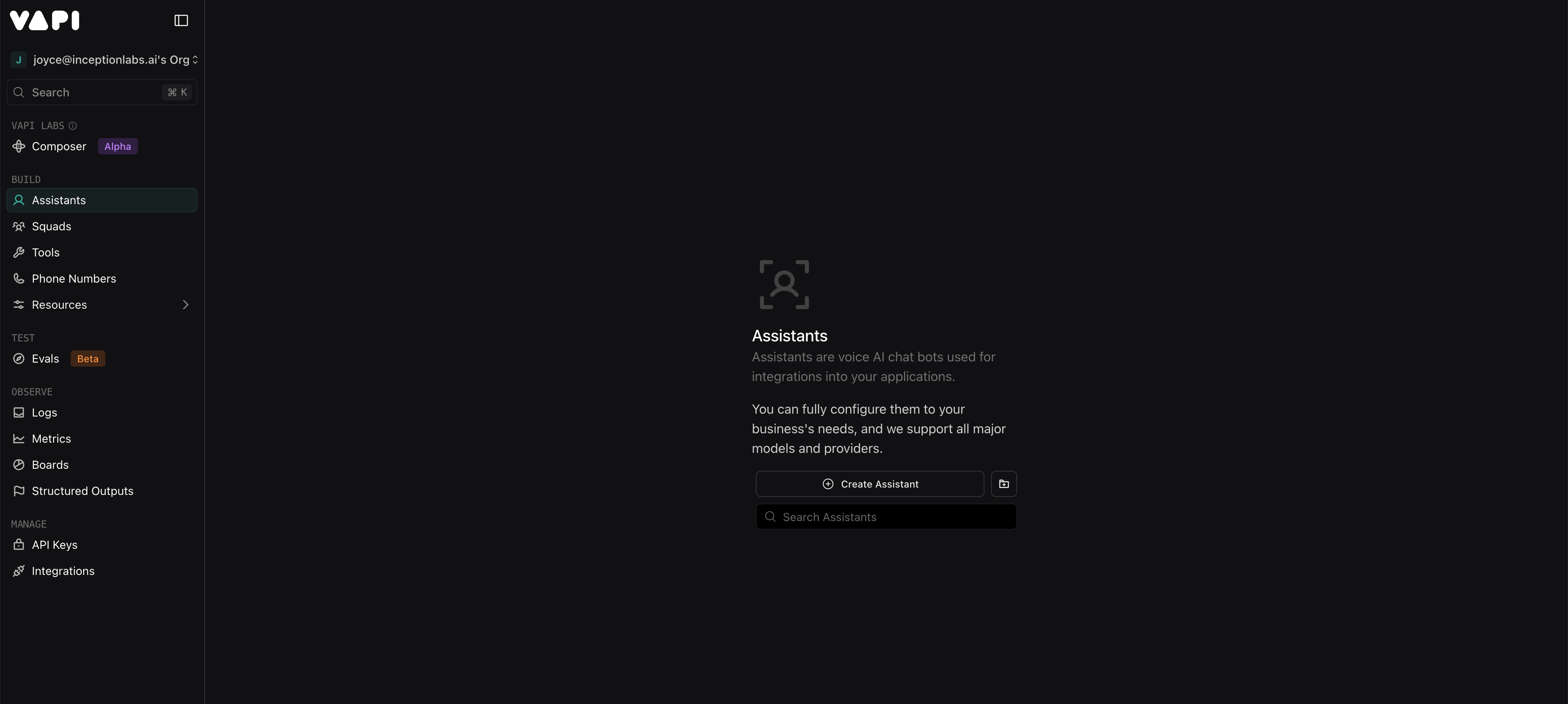
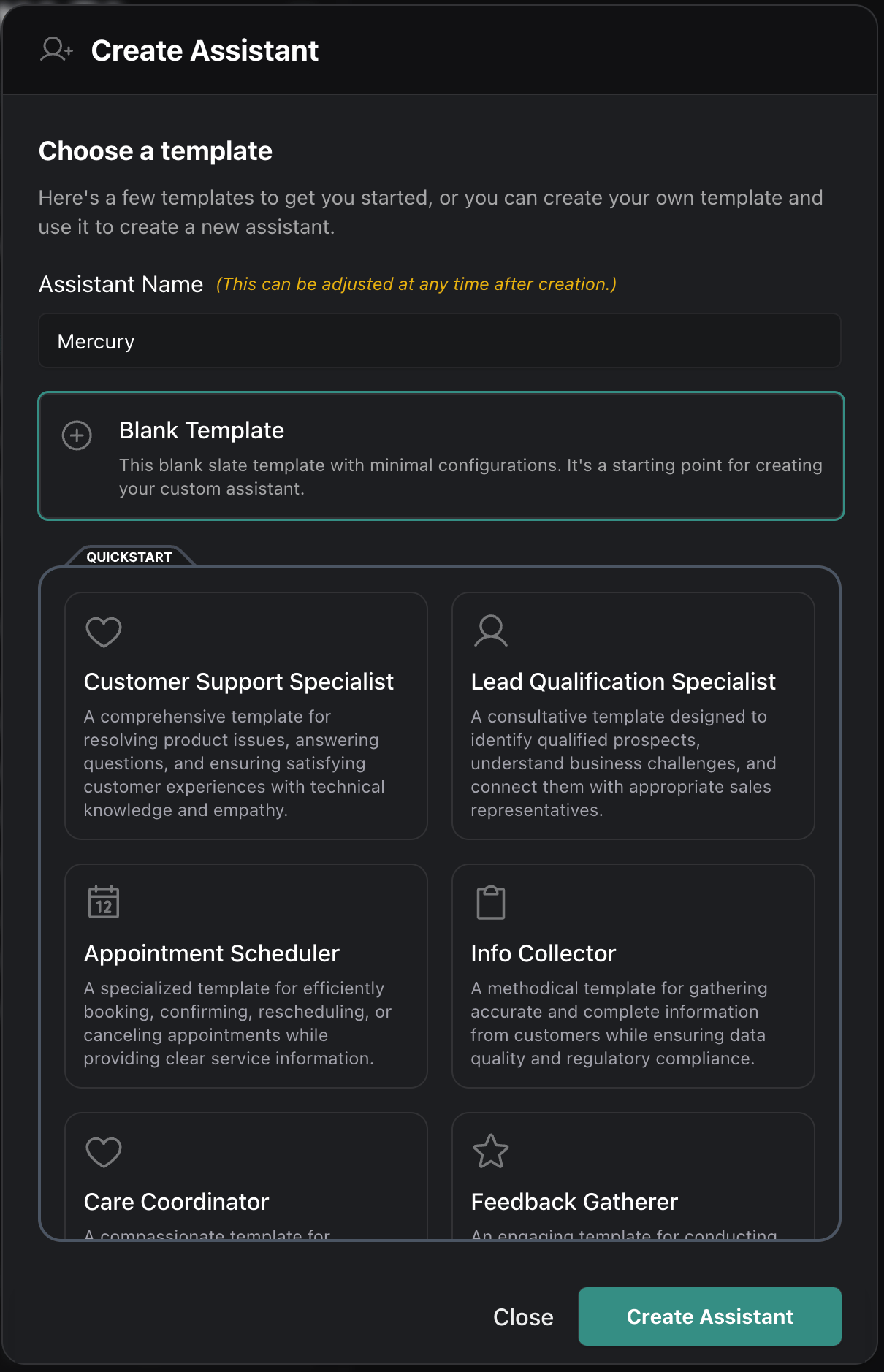
- Name your assistant and select your desired assistant template.
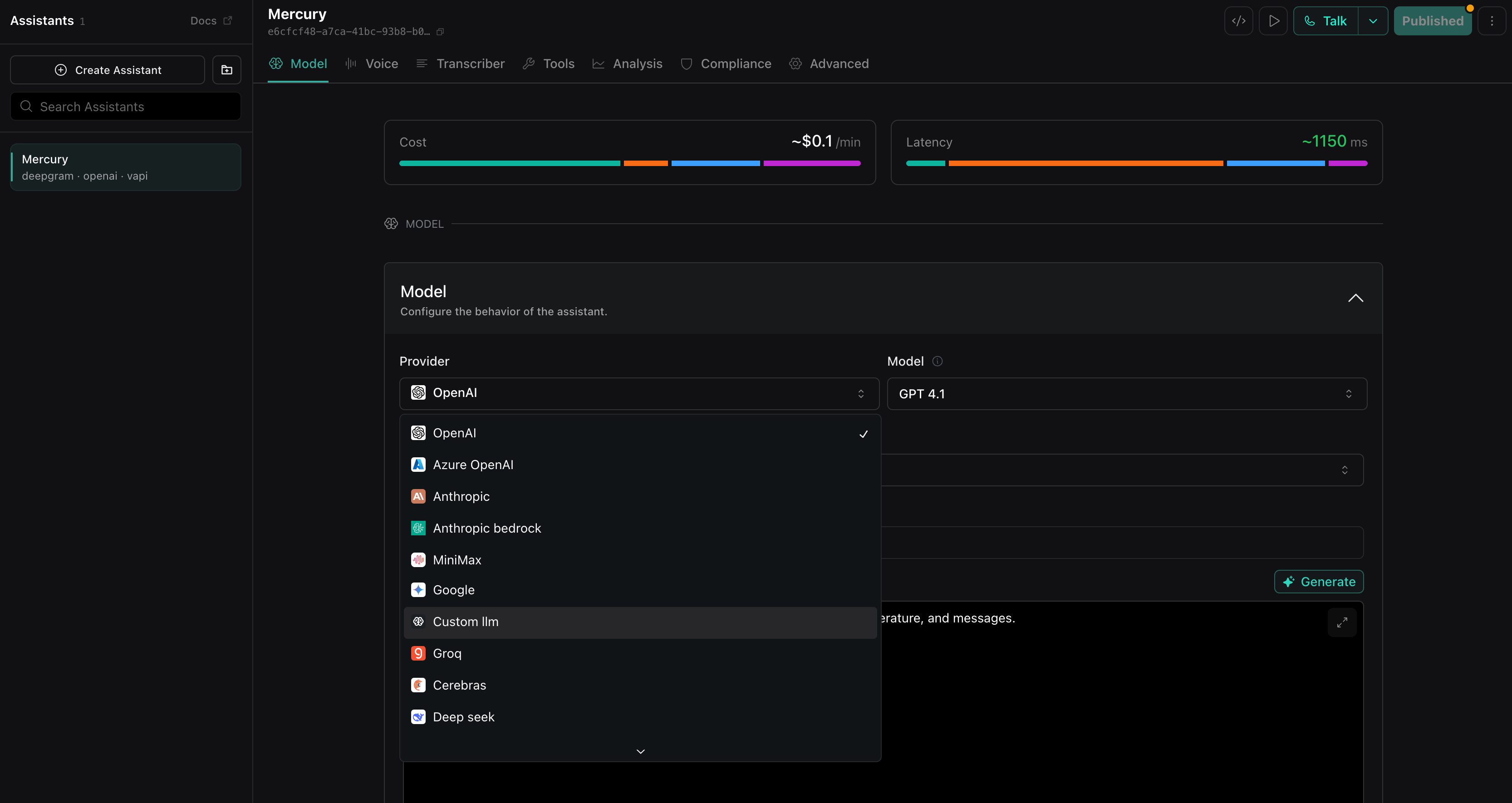
- Select Custom llm from the Model dropdown:
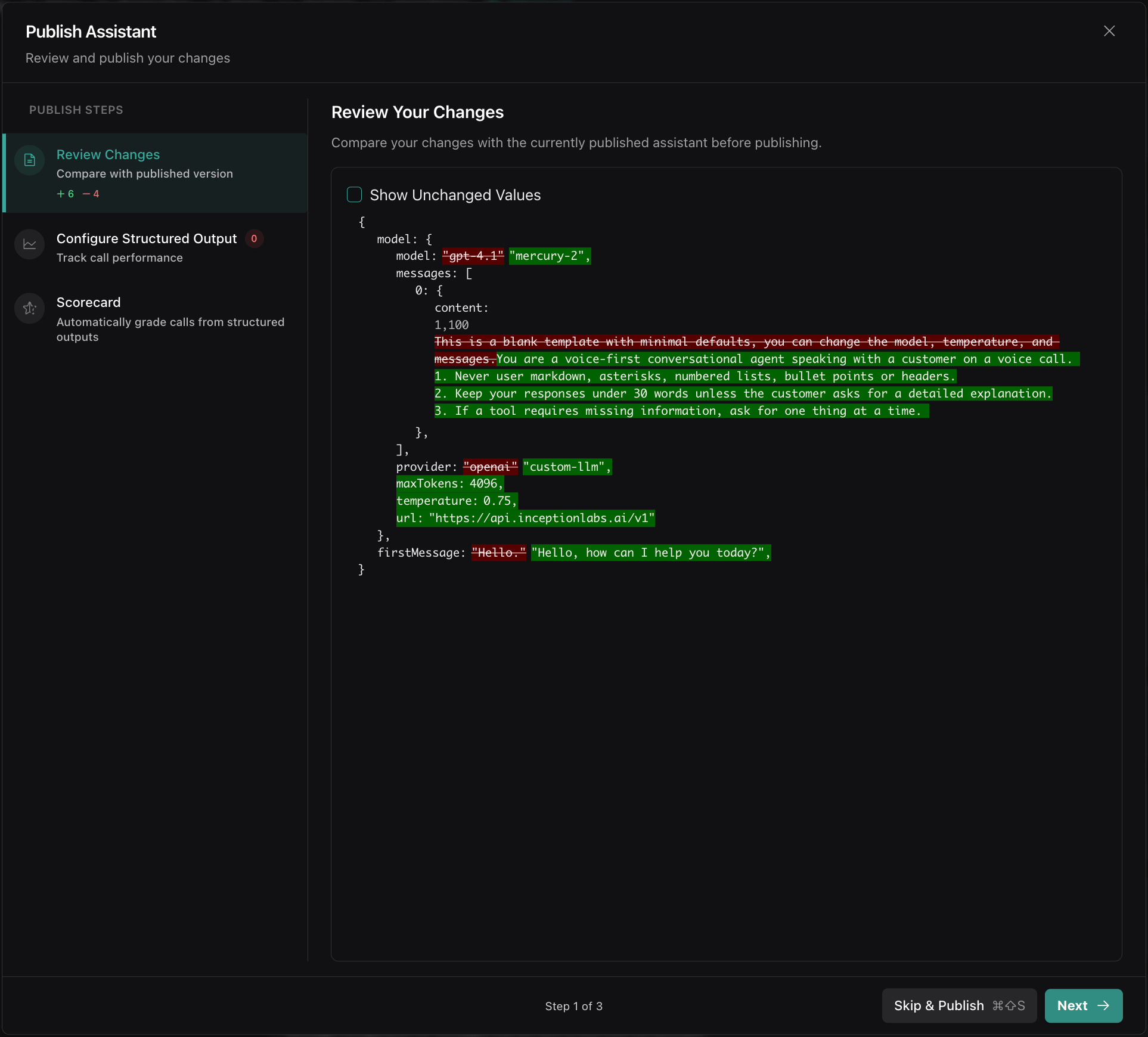
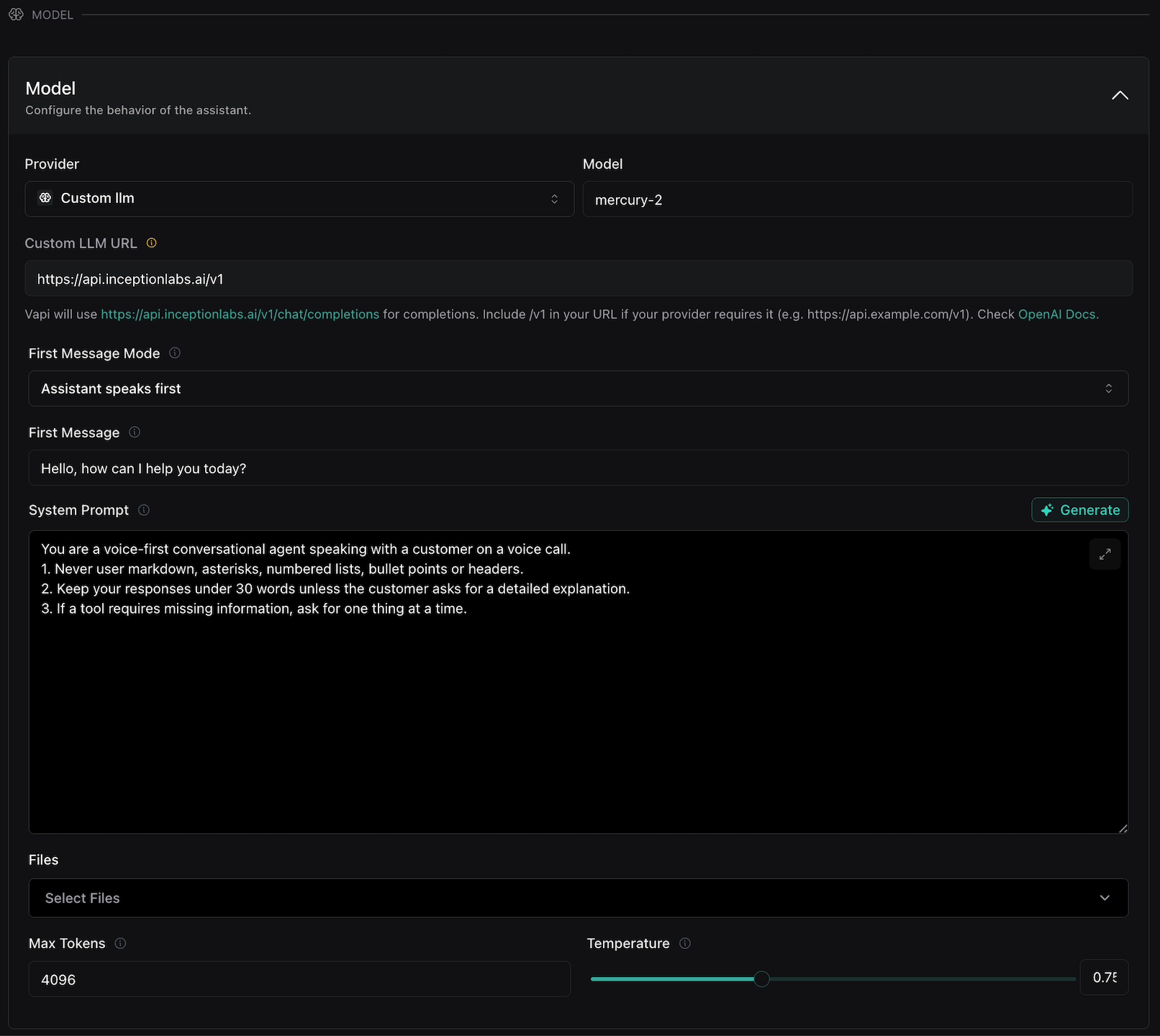
- Fill in model details as follows:
- Set Custom LLM URL as
https://api.inceptionlabs.ai/v1 - Set Model as
mercury-2 - Set Temperature to
0.75 - Set Max Tokens to a slightly higher value, like
4096. This is because the default reasoning effort ismedium, and Max Tokens includes reasoning tokens. - Configure First Message Mode, First Message and System Prompt as desired.
- Scroll down to manage Tools, Structured Outputs and more.
- Set Custom LLM URL as
- When you’re ready, hit Publish in the top right corner, and Talk to speak to Mercury 2!