> ## Documentation Index
> Fetch the complete documentation index at: https://docs.inceptionlabs.ai/llms.txt
> Use this file to discover all available pages before exploring further.
# ElevenLabs
> Wire Mercury 2 into the ElevenLabs Agents platform as a custom LLM.
This tutorial creates a voice assistant, integrating the realtime reasoning intelligence of Mercury 2 with the TTS and STT models from ElevenLabs. For this demo, you will need an Inception [API key](https://platform.inceptionlabs.ai/dashboard/api-keys) and an ElevenLabs [account](https://elevenlabs.io/app/sign-up).
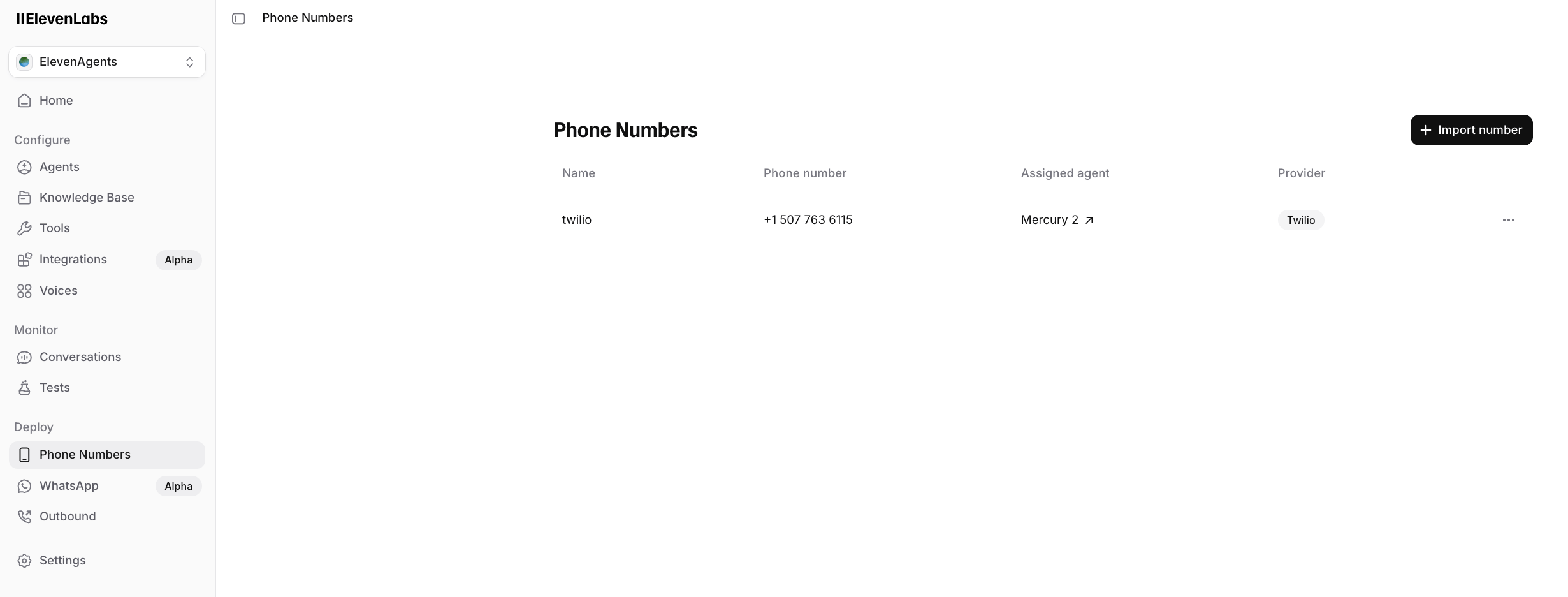
1. Navigate to the **Agents** [platform](https://elevenlabs.io/app/agents?platform=agents) on the ElevenLabs sidebar.
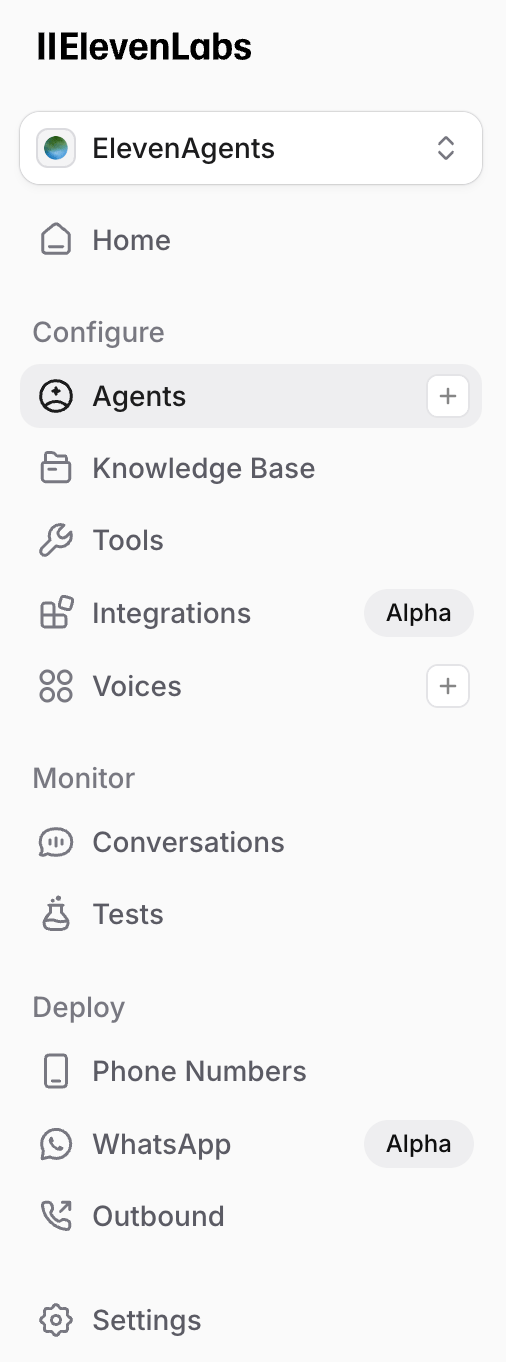 2. Create a **Blank Agent**. You can name it **Mercury 2**.
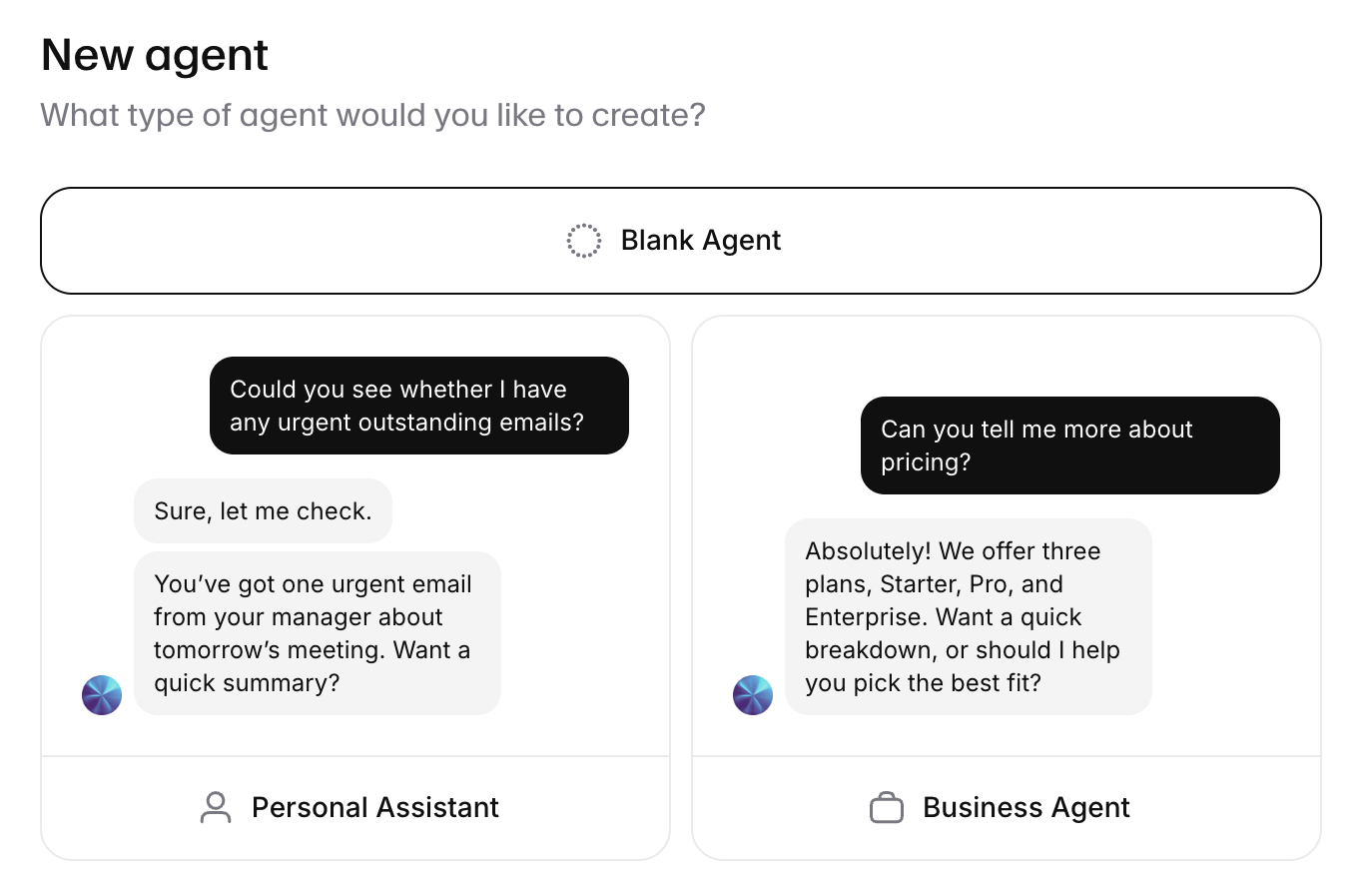 3. Click into the model dropdown in the bottom right, under **LLM**.
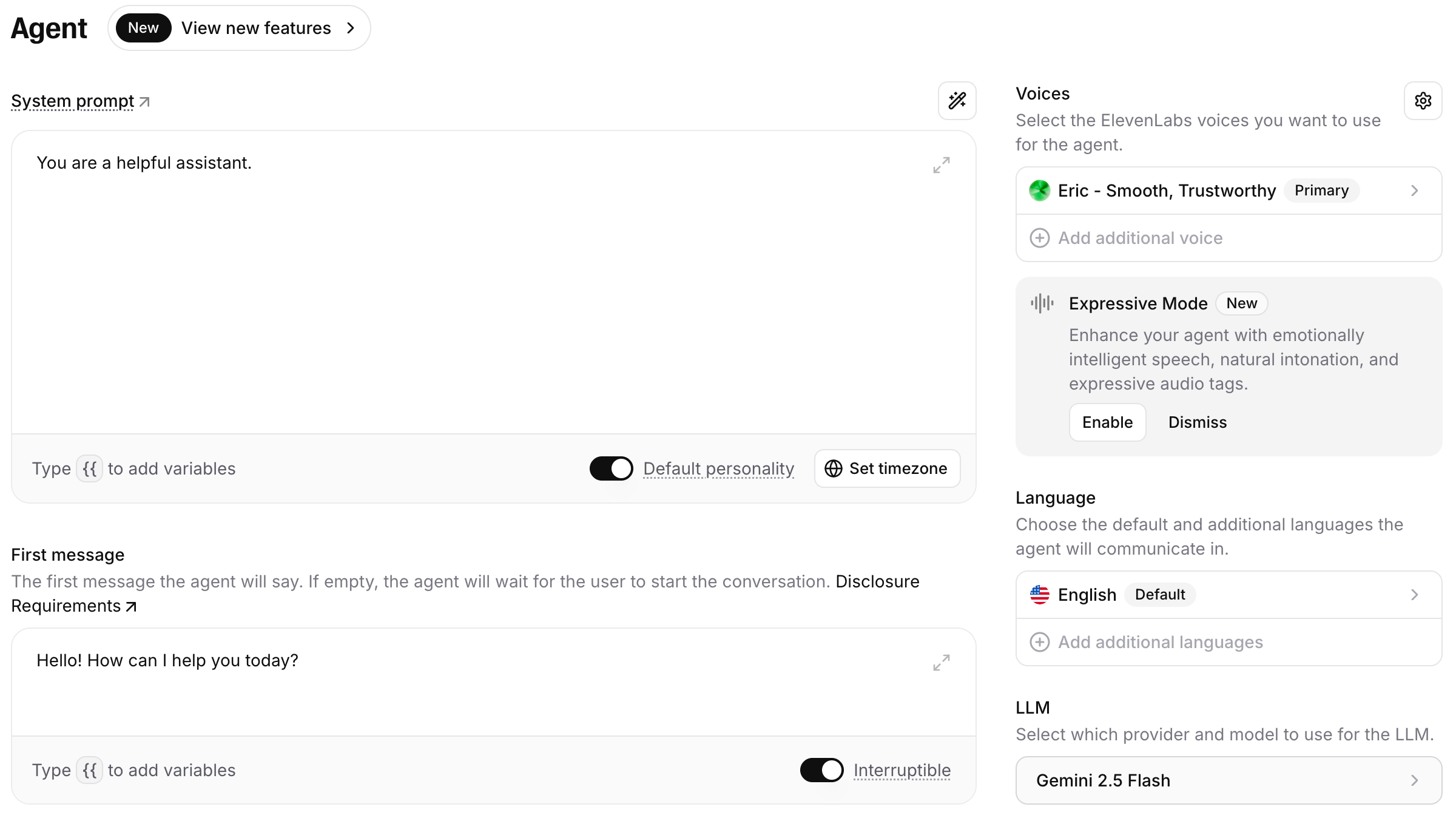 4. Scroll all the way down and select **Custom LLM**.
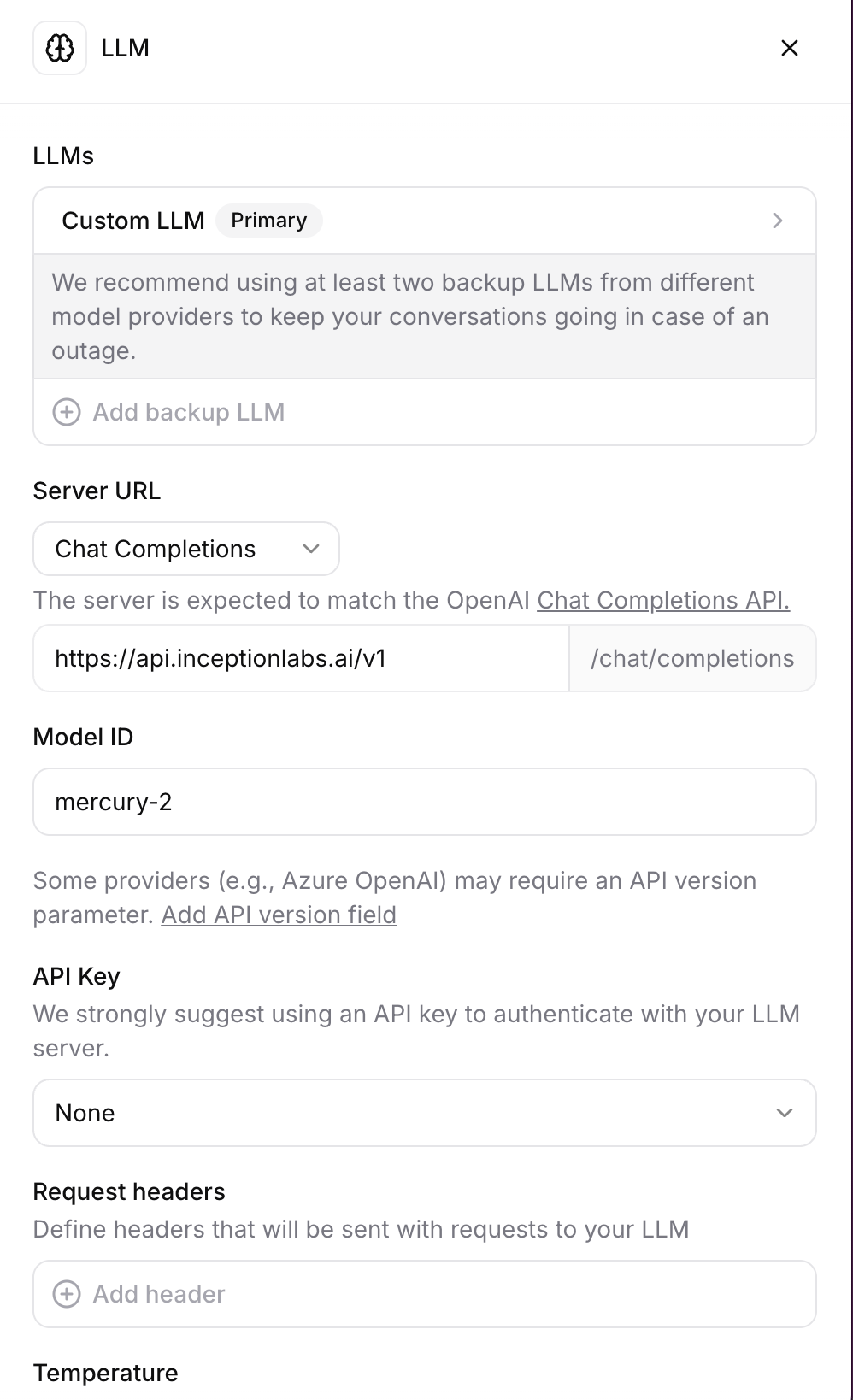
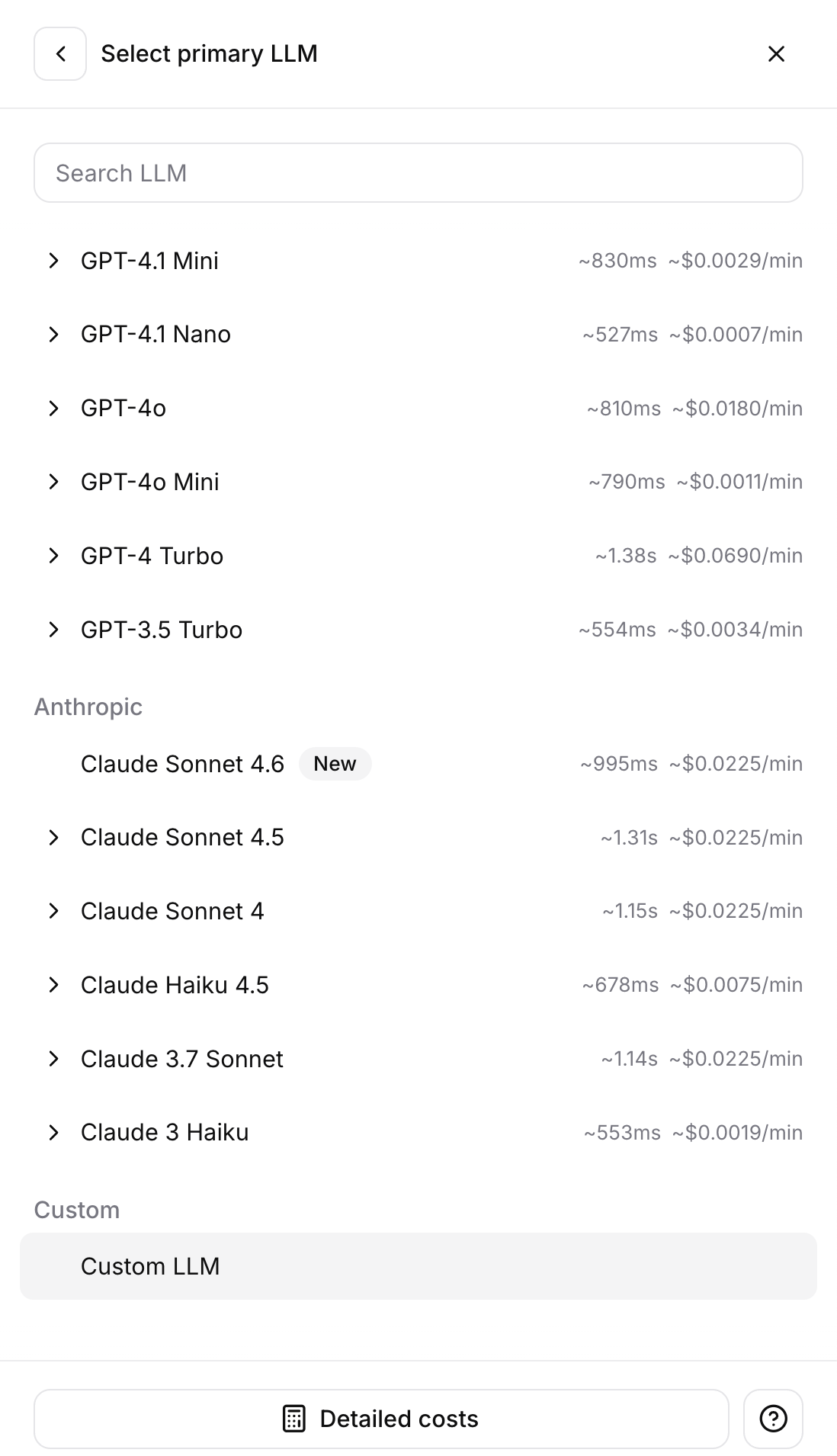 5. Fill in Custom LLM details as follows:
* Add your Inception API key by clicking **API Key** —> **Create new secret**
* Set **Server URL** to `https://api.inceptionlabs.ai/v1`
* Set **Temperature** to `0.75`
* Set **Reasoning Effort** as desired (N.B. None defaults to `medium` reasoning effort)
5. Fill in Custom LLM details as follows:
* Add your Inception API key by clicking **API Key** —> **Create new secret**
* Set **Server URL** to `https://api.inceptionlabs.ai/v1`
* Set **Temperature** to `0.75`
* Set **Reasoning Effort** as desired (N.B. None defaults to `medium` reasoning effort)
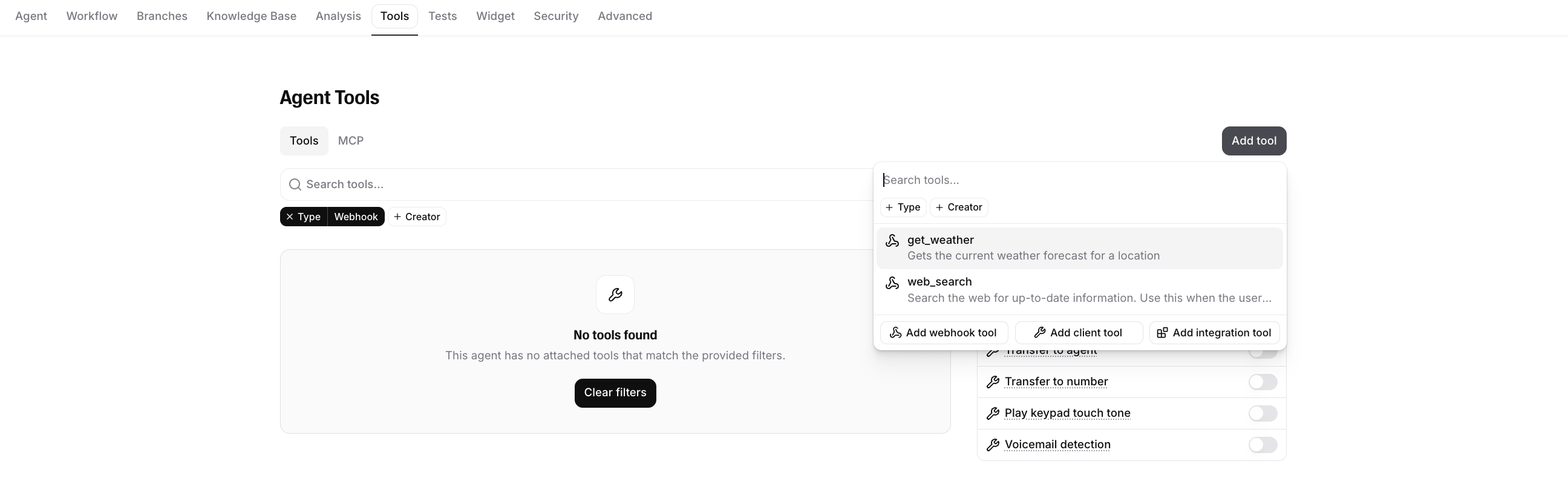
 6. Add any custom tools under the **Tools** tab.
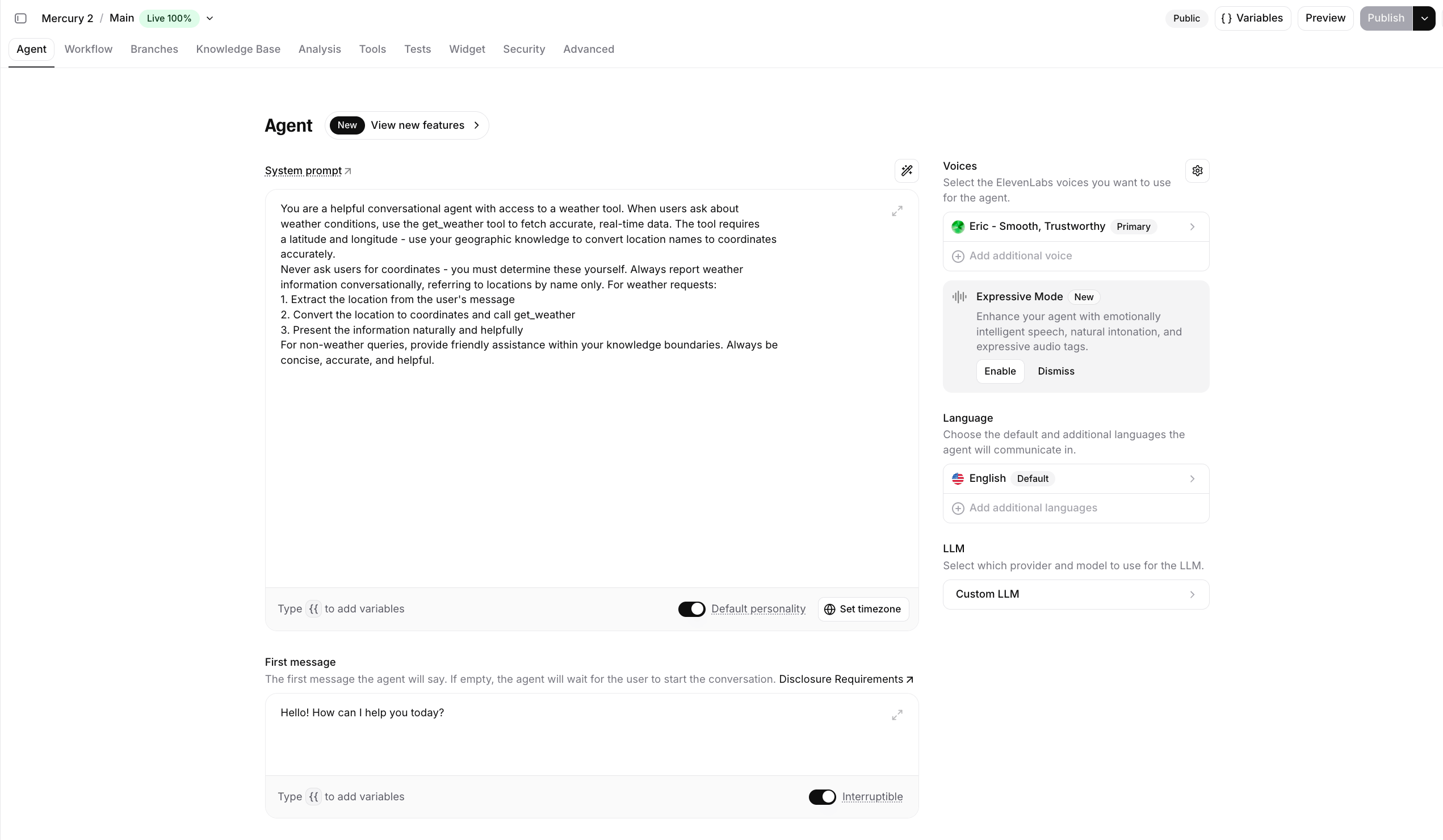
 7. Amend the Mercury 2 system prompt as desired, then hit **Publish** in the top right corner when done!
 8. For phone integration, add **Mercury 2** as the assigned agent to pick up your phone calls.